Aurora dashboard usage
Aurora is the web dashboard for viewing DataStone values by company, line, and machine.
Use this guide after you have created your Aurora account and accepted a company invitation from your tenant administrator.
What you need
You need an account and a company invitation before you can view a dashboard:
| Item | Notes |
|---|---|
| Aurora URL | Use the address provided by Reshenie. For local development, use http://localhost:5173. |
| Account | Register your own Aurora account with your name, email, and password. |
| Invitation | A tenant administrator invites your registered email from company settings. |
| Company access | Open the invitation email, sign in, and accept the invitation. |
| Machine setup | Lines, machines, DataStones, devices, and data streams must already be configured before values can appear. |
If any of these are missing, contact your tenant administrator or Reshenie support.
Register and accept an invitation
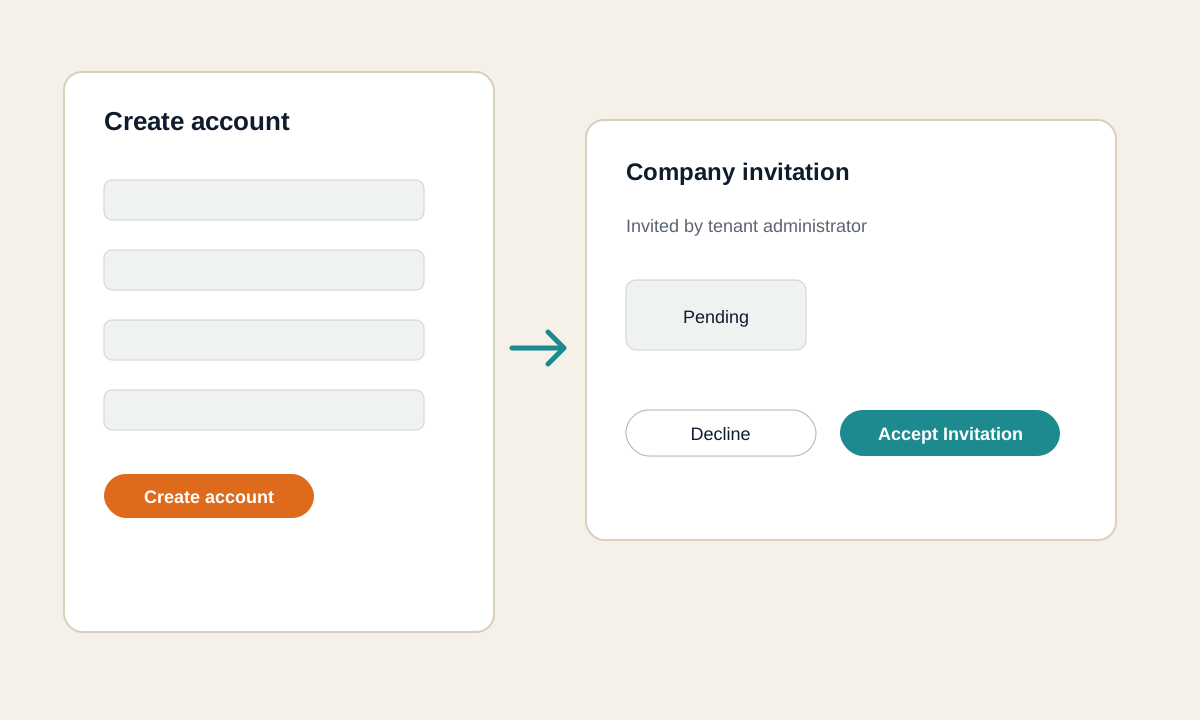
Aurora users register individually. A tenant administrator then invites the registered user into a company.
Create your account
- Open the Aurora URL in a browser.
- Open the registration page.
- Enter your name, email, password, and password confirmation.
- Select Create account.
- Return to the sign-in page and sign in.
Accept the company invitation
- Ask your tenant administrator to invite the email address you registered.
- Open the company invitation email.
- Open the invitation link.
- Sign in if Aurora asks you to.
- Review the company name and invited email.
- Select Accept Invitation.
After accepting the invitation, open Companies or return to the dashboard. Your company should now appear in the left sidebar.
For tenant administrators
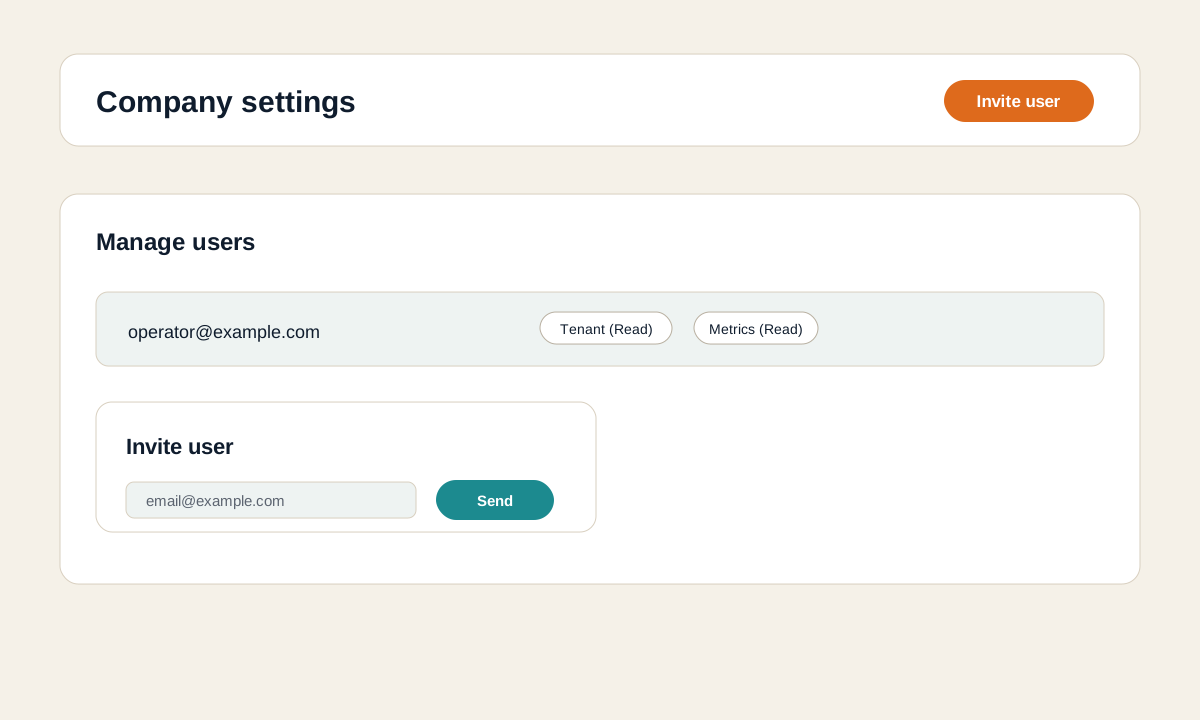
The Invite user action in company settings sends an invitation to an existing registered user. If the user has not registered yet, Aurora shows User not found. They must already exist.
Open Aurora after setup
- Open the Aurora URL in a browser.
- Select Sign in.
- Sign in with your registered account.
- If you can access more than one company, select the company you want to view.
After sign-in, the left sidebar shows the companies, lines, and machines available to your account.
Access
If your company does not appear, confirm that you accepted the invitation. If it still does not appear, ask a tenant administrator to confirm that your account has Tenant (Read) access.
Choose a machine
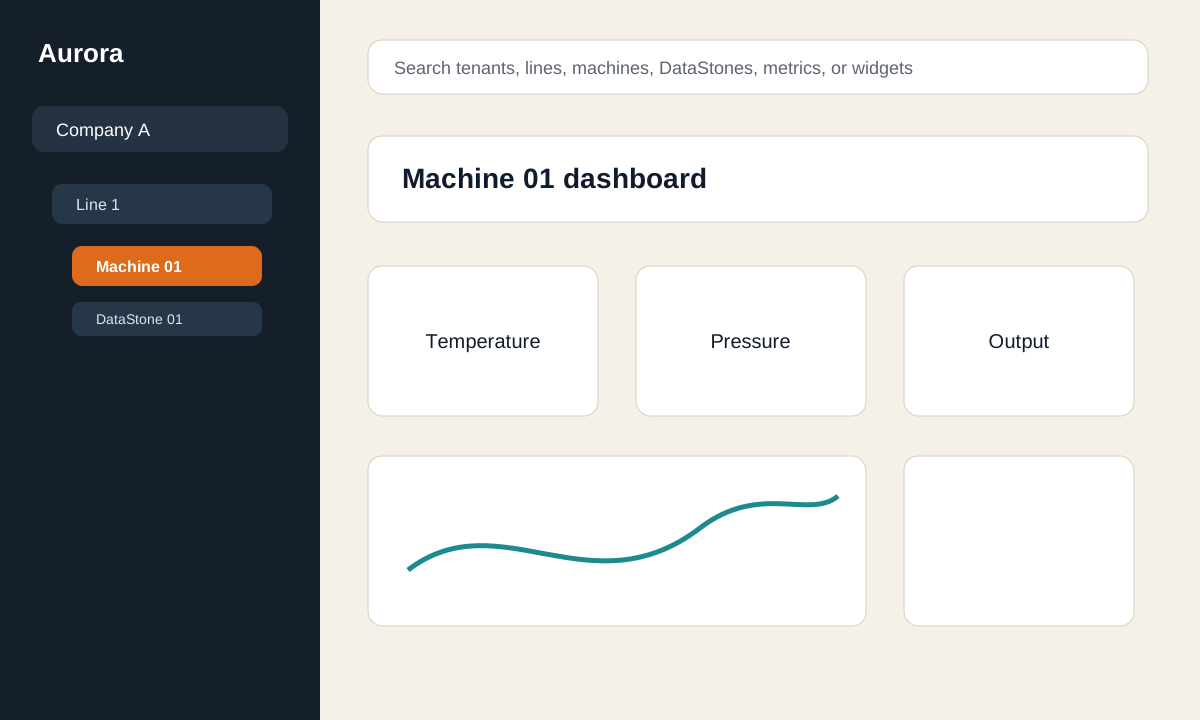
Aurora organizes data in this order:
| Level | Meaning |
|---|---|
| Company | Your tenant or customer workspace. |
| Line | A production line or logical group. |
| Machine | The equipment dashboard you want to view. |
| DataStone | The edge PC connected to the machine or site network. |
| Device | A PLC, camera, HMI, or other source connected through DataStone. |
| Data | A collected value, tag, register, or stream. |
To open a dashboard:
- Select your company in the left sidebar.
- Select a line.
- Select a machine.
- Wait for the machine dashboard to load.
Use the search field at the top of the dashboard to find companies, lines, machines, DataStones, metrics, or widgets. Search starts after at least two characters.
Access
If lines or machines are missing, ask a tenant administrator to check Lines (Read) and Machines (Read) access.
View metrics
The dashboard shows widgets for the selected machine. A widget can show one value, a chart, a gauge, a control, a camera view, or a section title.
Common widget types:
| Widget | Use |
|---|---|
| Sparkline | Trend chart for one or more values. |
| Number | Current or summarized numeric value. |
| Circular Gauge | Gauge-style numeric display. |
| Bar | Bar-style numeric display. |
| Linear Gauge | Horizontal gauge display. |
| Control | Button or switch for a configured control value. |
| Camera view | Video or screen stream from a camera, VNC, or V4L2 device. |
If a widget shows no data, check the selected mode, time range, and DataStone status first.
Access
Viewing saved metric widgets requires Metrics (Read) access. Reading device lists may also require DataStones (Read) and Devices (Read).
Use Statistics mode
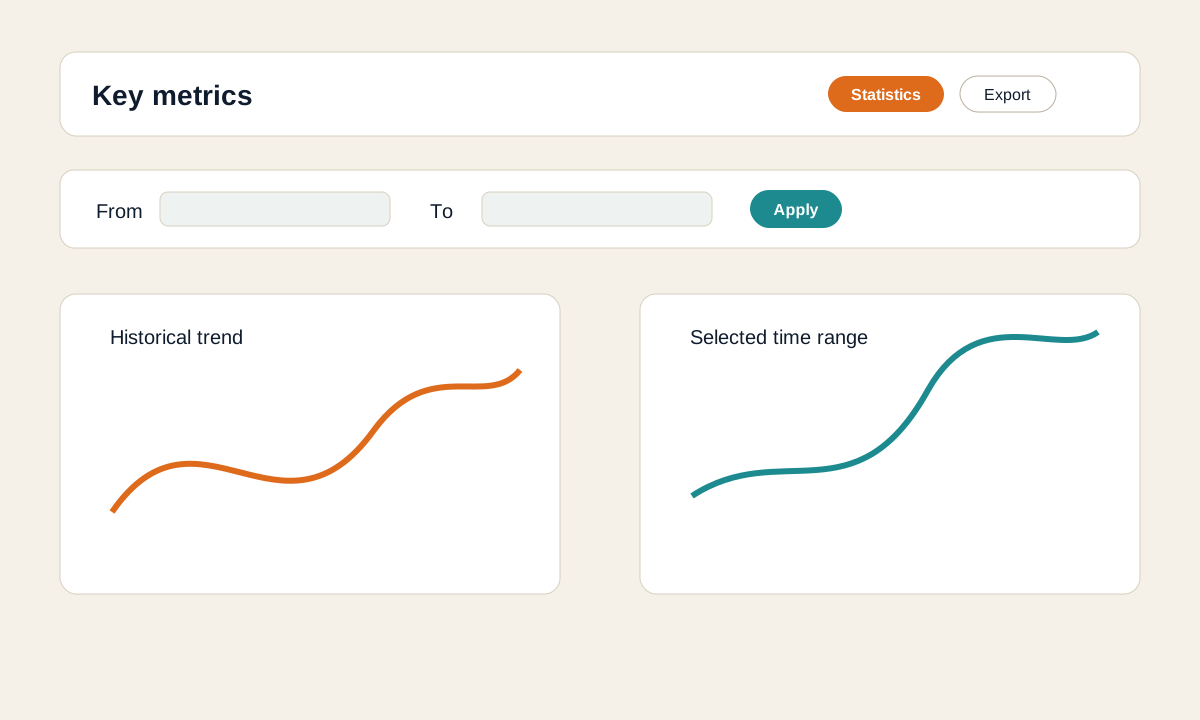
Use Statistics mode when you want to review historical values or a selected time range.
- Select Statistics in the top bar.
- Review the widgets on the machine dashboard.
- To filter by time, select the filter button.
- Enter From and To dates.
- Select Apply.
- Select Clear to remove the time filter.
Use Statistics mode for normal reporting, historical checks, and CSV export.
Use Real-time mode
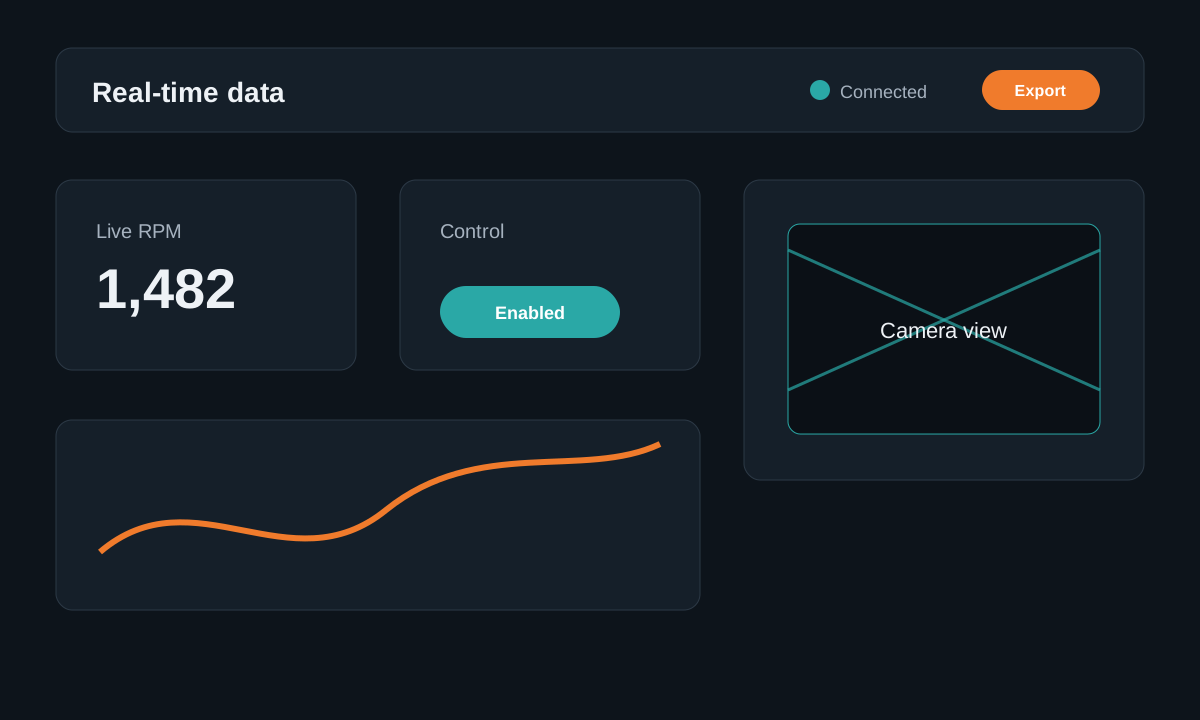
Use Real-time mode when you need live values from a connected DataStone.
- Select Real-time in the top bar.
- Wait for the live connection to start.
- Watch live values, charts, camera widgets, or configured controls.
- If the connection fails, check that the DataStone is online and configured for real-time access.
Access
Real-time viewing and controls require DataStone Control (Write) access. Remote shell access, when available, requires DataStone Shell (Write).
Export data
Use Export when you need a file for reporting or analysis.
Export statistics data
- Select Statistics mode.
- Apply a time filter if you only need a specific range.
- Select Export.
- Choose CSV.
- Confirm the export.
Large exports may show progress while Aurora fetches data for each metric.
Export real-time data
- Select Real-time mode.
- Select Export.
- Choose CSV to start recording incoming values.
- Let the dashboard run while the values are collected.
- Open Export again and choose CSV to stop recording and download the file.
Export AASX
Some machine dashboards can export an AASX package.
- Open the machine dashboard.
- Select Export.
- Choose AASX if the option is available.
- Confirm the export.
Access
CSV export from dashboard metrics requires Metrics (Read) access. AASX export requires Machines (Read) access.
Customize a dashboard
Tenant administrators or authorized users can customize the dashboard for a machine.
Add a metric widget
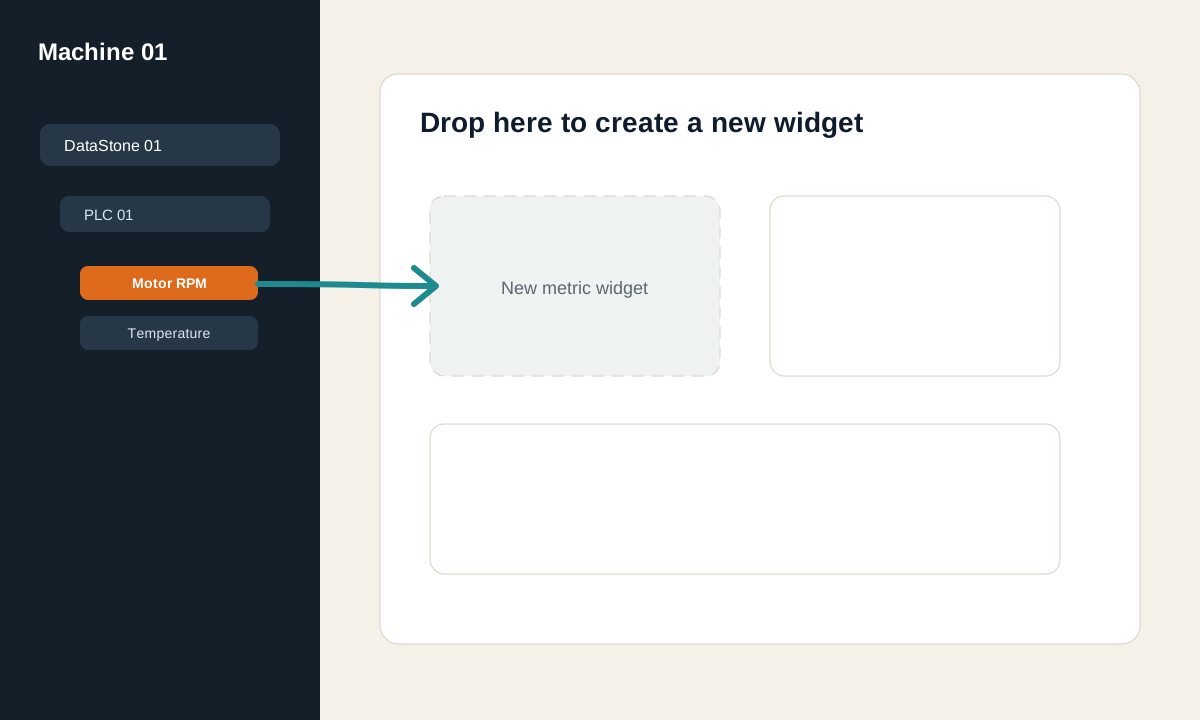
- Expand the machine in the left sidebar.
- Expand the DataStone and device.
- Drag a data item onto the dashboard.
- Drop it on empty dashboard space to create a widget.
- Drop it on an existing compatible widget to add it as another series.
Add a camera widget
- Expand the machine in the left sidebar.
- Expand the DataStone and camera-capable device.
- Drag Camera view onto the dashboard.
Camera widgets are available for camera or HMI devices, and for devices using VNC or V4L2.
Arrange widgets
- Drag a widget to move it.
- Grab the corner of a widget to resize it.
- Double-click a widget to focus on it.
- Select Exit focus to return to the full dashboard.
- Use the + insert control between sections to add a section title.
Edit widgets
Right-click a widget to open its menu. Depending on the widget, you can:
- copy and paste a widget,
- edit the title, style, unit, color, or range,
- hide or show a series,
- reorder series,
- add indicators to a chart,
- remove a series,
- remove the widget.
Deleting dashboard items
Removing widgets, series, lines, machines, or DataStones can affect other users who view the same company dashboard. Confirm before deleting shared items.
Access
Changing dashboard widgets requires Metrics (Write) access.
Manage lines, machines, and DataStones
Tenant administrators can manage the equipment structure from the dashboard.
Add a line
- Open the company dashboard.
- Select New line.
- Enter a clear line name.
- Save.
Add a machine
- Expand the line.
- Select New machine.
- Enter the machine name.
- Optionally upload a machine image.
- Save.
Add a DataStone
- Expand the machine.
- Select New DataStone.
- Enter the DataStone name.
- Choose the network type provided by Reshenie.
- Enter the base URL or WebRTC host ID provided for the DataStone.
- Enter the DataStone API key if Reshenie provided one.
- Enable Signal Analysis only when Reshenie instructs you to use it.
- Save.
Access
Managing lines requires Lines (Write) access. Managing machines requires Machines (Write) access. Managing DataStones requires DataStones (Write) access.
For tenant administrators
Tenant administrators can assign access from the company settings page.
Aurora uses the same labels shown in company settings:
| Access label | Allows users to |
|---|---|
| Tenant (Read) | See the company. |
| Tenant (Write) | Manage company-level settings, users, and API keys. |
| Lines (Read) | See production lines. |
| Lines (Write) | Create, rename, and delete lines. |
| Machines (Read) | See machines, machine images, and machine exports. |
| Machines (Write) | Create, edit, move, and delete machines. |
| DataStones (Read) | See DataStones and their status. |
| DataStones (Write) | Create, edit, attach, detach, and delete DataStones. |
| Devices (Read) | Read device lists from DataStone. |
| Metrics (Read) | View dashboard widgets, values, statistics, and CSV exports. |
| Metrics (Write) | Create and edit dashboard widgets and layouts. |
| DataStone Control (Write) | Use real-time connections and configured controls. |
| DataStone Shell (Write) | Open a remote shell for supported DataStones. |
| Files (Read) | View company files. |
| Files (Write) | Upload, update, and remove company files. |
Give users the smallest access needed for their work. Write access includes Read access for the same area.
When a tenant administrator invites a user, Aurora first sends default read access. Add more access only after the user accepts the invitation and their work requires it.
Troubleshooting
| Problem | What to check |
|---|---|
| You cannot register | Confirm all required fields are filled and that the email is not already registered. |
| You cannot sign in | Confirm the Aurora URL and account details. |
| The invitation link says it is missing | Confirm you are signed in with the same account that was invited. |
| The tenant administrator cannot invite you | Register your own account first, then ask the administrator to invite that email address. |
| Your company is missing | Confirm you accepted the invitation, then ask an administrator to check Tenant (Read) access. |
| A line or machine is missing | Ask an administrator to check Lines (Read) and Machines (Read) access. |
| Edit buttons are missing | Ask an administrator to check the matching Write access. |
| DataStone shows no devices | Confirm the DataStone is online, then ask an administrator to check DataStones (Read) and Devices (Read) access. |
| A widget shows no value | Check the selected mode, time range, DataStone status, and whether the data stream is collecting values. |
| Real-time mode does not connect | Confirm the DataStone is online and configured for real-time access. Ask an administrator to check DataStone Control (Write) access. |
| Export is empty | Confirm the time range contains data, or that real-time recording received values before export. |
If the issue continues after these checks, contact Reshenie support with the company name, line, machine, DataStone name, and the time the issue occurred.