First access
Use the DataStone URL, temporary username, and temporary password that Reshenie sent by email.
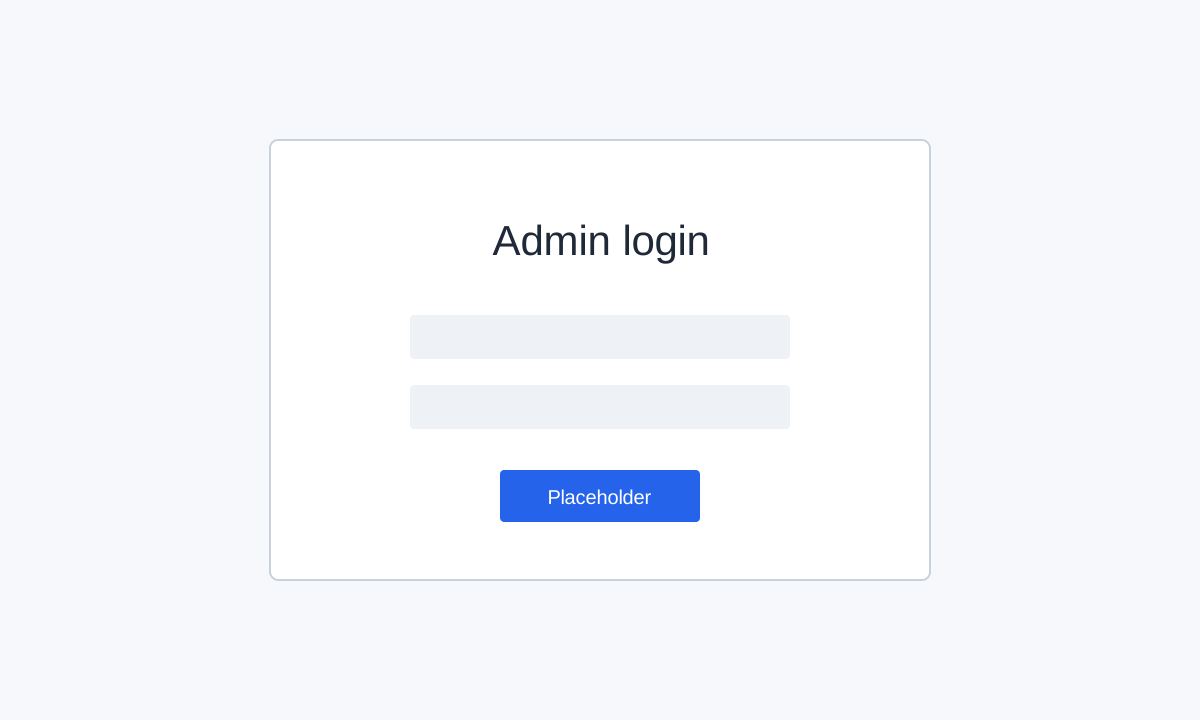
Open the Admin UI
- Connect your computer to the same network as the DataStone appliance, or connect through Hamachi if Reshenie instructed you to do so first. If the appliance is not on the site network yet, complete Network setup first.
- Open
http://<device-ip>:8000/admin/in a browser. - Enter the temporary username and password.
- Select Log in.
Change the temporary password
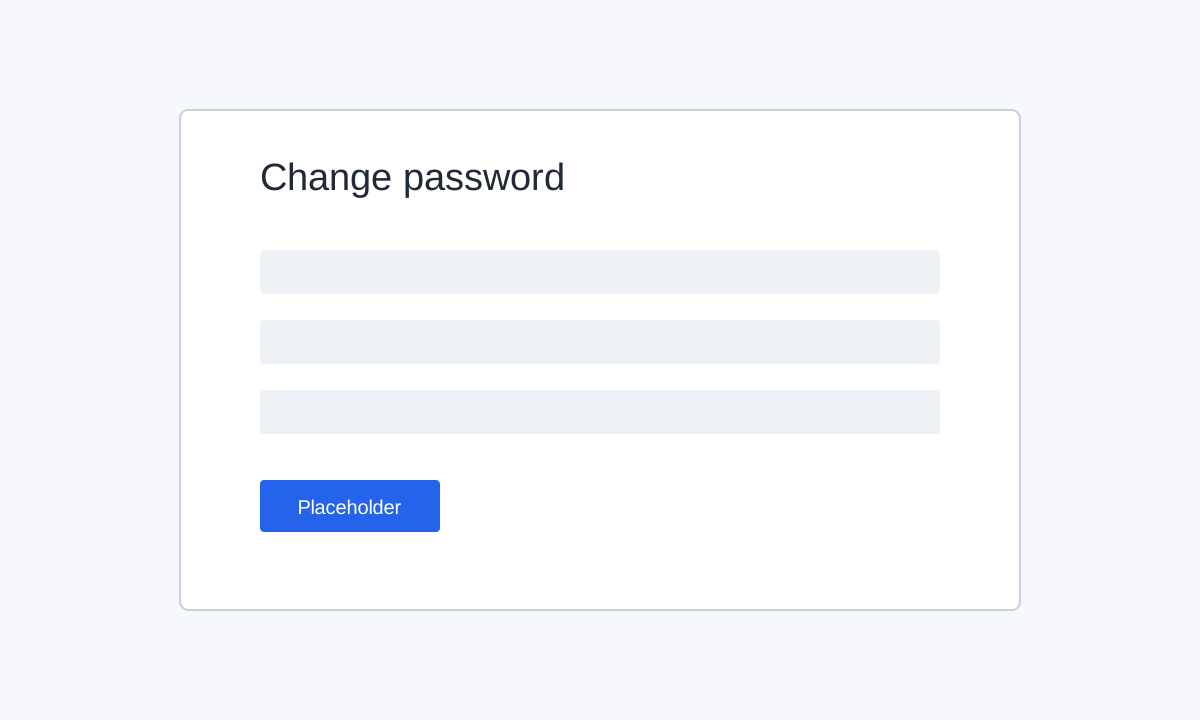
Change the temporary password before adding devices.
- In the upper-right account menu, open the password change page.
- Enter the temporary password.
- Enter a new password and confirm it.
- Save the change.
- Store the new password according to your site policy.
Confirm access
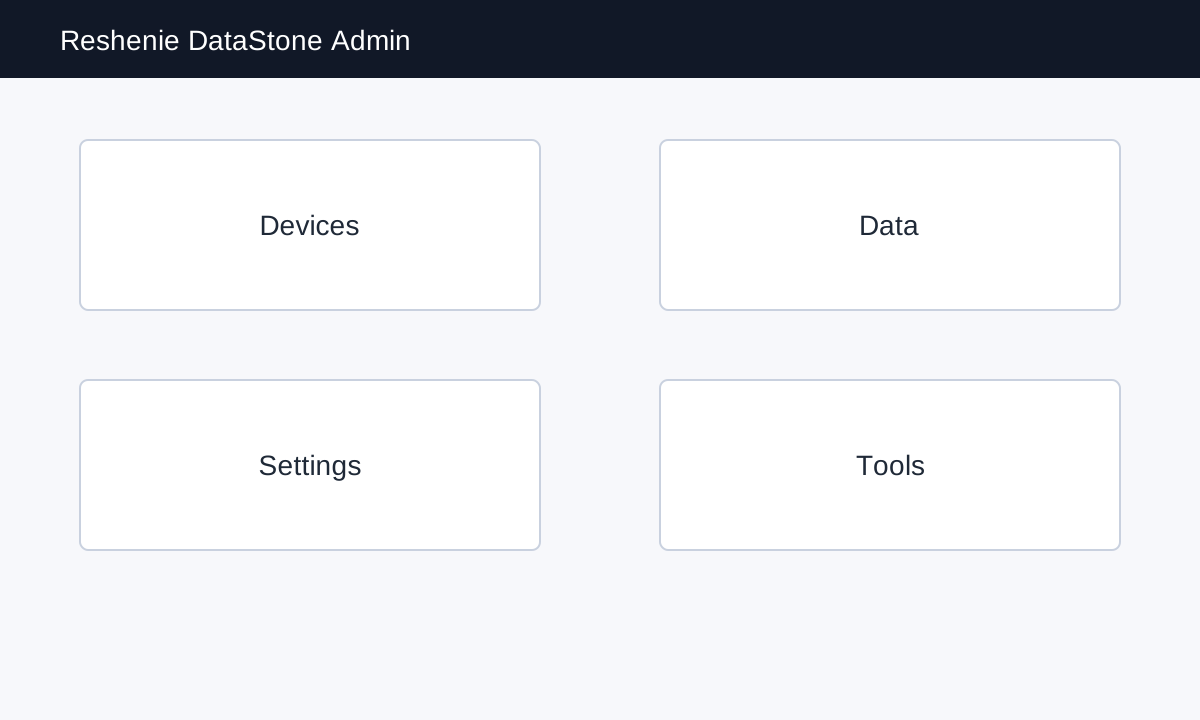
After changing the password, return to the Admin home page. You should see sections for devices, data, settings, and system tools.
If the login page does not open, confirm the IP address and network connection first. If the password does not work, ask Reshenie to reset or resend the temporary account details.